Mikrotik RouterOS: คู่มือตั้งค่า Router สำหรับธุรกิจ SME
Mikrotik เป็น router ที่นิยมมากในธุรกิจ SME และ ISP ในไทย เพราะราคาถูก ฟีเจอร์ครบครัน performance ดีเทียบกับราคา RouterOS ที่เป็น operating system ของ Mikrotik มีความสามารถเทียบเท่า enterprise router ราคาแพงหลายเท่า รองรับ routing, firewall, VPN, QoS, hotspot, bandwidth management และอีกมากมาย
สำหรับ IT ที่ดูแลเครือข่ายธุรกิจ SME Mikrotik เป็นตัวเลือกที่คุ้มค่าที่สุด แต่ RouterOS มี learning curve สูง configuration ซับซ้อน ไม่มี wizard ที่ง่ายเหมือน consumer router บทความนี้จะสอนการตั้งค่า Mikrotik RouterOS ตั้งแต่พื้นฐาน สำหรับธุรกิจ SME ที่ต้องการ internet access, firewall, VPN และ bandwidth management
Mikrotik Hardware ที่แนะนำสำหรับ SME
| รุ่น | CPU | RAM | Ports | Throughput | ราคาโดยประมาณ | เหมาะกับ |
|---|---|---|---|---|---|---|
| hAP ac3 | ARM 716MHz | 256MB | 5x GbE + Wi-Fi | ~500Mbps | 3,500 บาท | สำนักงานเล็ก 5-15 คน |
| RB4011iGS+ | ARM 1.4GHz quad | 1GB | 10x GbE + SFP+ | ~2Gbps | 7,000 บาท | สำนักงาน 15-50 คน |
| RB5009UG+S+ | ARM 1.4GHz quad | 1GB | 7x GbE + 1x 2.5GbE + SFP+ | ~3Gbps | 8,500 บาท | สำนักงาน 30-100 คน |
| CCR2004-1G-12S+2XS | ARM 1.7GHz quad | 4GB | 1x GbE + 12x SFP+ + 2x 25GbE | ~10Gbps | 25,000 บาท | ISP, enterprise edge |
การตั้งค่าพื้นฐาน
เข้าถึง RouterOS
เชื่อมต่อกับ Mikrotik ได้หลายวิธี WinBox เป็น GUI tool ที่นิยมที่สุด ดาวน์โหลดจาก mikrotik.com ใช้งานง่าย connect ผ่าน MAC address หรือ IP WebFig เข้าผ่าน web browser ที่ IP ของ router SSH/Telnet สำหรับ CLI (แนะนำ SSH เท่านั้น ปิด Telnet) API สำหรับ automation default username: admin, password: ว่าง (ต้องเปลี่ยนทันที)
ตั้งค่า WAN (Internet)
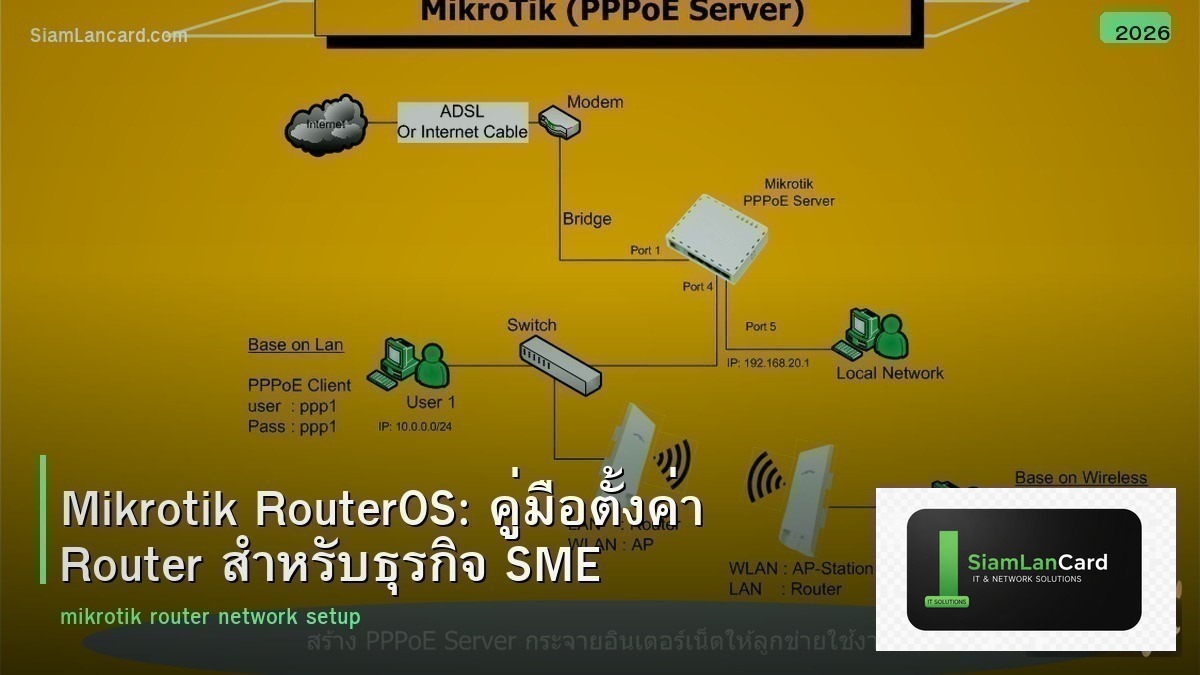
กำหนด ether1 เป็น WAN port ต่อกับ modem/ISP ถ้า ISP ให้ DHCP: ตั้ง DHCP Client บน ether1 ถ้า ISP ให้ static IP: กำหนด IP address, subnet mask, gateway บน ether1 ถ้า ISP ใช้ PPPoE: สร้าง PPPoE Client บน ether1 กรอก username/password ที่ ISP ให้ ตั้ง DNS: ใช้ DNS ของ ISP หรือ public DNS เช่น 8.8.8.8, 1.1.1.1
ตั้งค่า LAN
สร้าง bridge สำหรับ LAN ports รวม ether2-ether5 (หรือทุก port ยกเว้น WAN) เข้า bridge กำหนด IP address ให้ bridge เช่น 192.168.88.1/24 ตั้ง DHCP Server บน bridge เพื่อแจก IP ให้ clients กำหนด DHCP pool เช่น 192.168.88.10-192.168.88.254 กำหนด DNS server เป็น IP ของ router (192.168.88.1)
ตั้งค่า NAT
สร้าง srcnat masquerade rule เพื่อให้ LAN clients เข้า internet ได้ chain=srcnat, out-interface=ether1 (WAN), action=masquerade นี่คือ rule เดียวที่ทำให้ internet ใช้งานได้
Firewall Configuration
Input Chain (traffic ที่เข้า router เอง)
ตั้ง firewall filter rules สำหรับ input chain อนุญาต established/related connections อนุญาต ICMP (ping) จาก LAN อนุญาต management access (WinBox, SSH) จาก LAN เท่านั้น drop traffic ที่เหลือทั้งหมดจาก WAN สำคัญมาก: ห้ามเปิด management access จาก WAN เว้นแต่จะใช้ VPN
Forward Chain (traffic ที่ผ่าน router)
อนุญาต established/related connections อนุญาต traffic จาก LAN ไป WAN (internet access) drop invalid connections drop traffic จาก WAN เข้า LAN ที่ไม่ใช่ established/related (ป้องกัน inbound attacks)
Bandwidth Management
Simple Queue
Simple Queue เป็นวิธีง่ายที่สุดในการจำกัด bandwidth กำหนด max-limit สำหรับแต่ละ IP หรือ subnet ตัวอย่าง: จำกัด network 192.168.88.0/24 ที่ max 100Mbps download / 50Mbps upload หรือจำกัดต่อ IP เช่น 192.168.88.100 ที่ 20Mbps/10Mbps
Queue Tree (ขั้นสูง)
Queue Tree ยืดหยุ่นกว่า Simple Queue ใช้ mangle rules mark traffic ก่อน แล้ว queue tree จัด priority ตาม mark สามารถทำ bandwidth guarantee (CIR) และ burst ได้ เหมาะสำหรับ ISP หรือองค์กรที่ต้องการ QoS ละเอียด
VPN สำหรับ Remote Access
L2TP/IPSec VPN
L2TP/IPSec เป็น VPN protocol ที่ devices ส่วนใหญ่รองรับ built-in (Windows, macOS, iOS, Android) ไม่ต้องติดตั้ง VPN client เพิ่ม ตั้งค่าบน Mikrotik: enable L2TP Server, กำหนด IPSec pre-shared key, สร้าง PPP profile กำหนด local/remote address pool, สร้าง PPP secret (username/password) สำหรับแต่ละ user
WireGuard VPN
WireGuard เป็น VPN protocol ใหม่ที่เร็วกว่า L2TP/IPSec มาก RouterOS 7.x รองรับ WireGuard ตั้งค่าง่าย (แค่ generate keypair และกำหนด peers) ข้อเสียคือต้องติดตั้ง WireGuard client บน devices แนะนำใช้ WireGuard สำหรับ RouterOS 7.x ขึ้นไป
Hotspot สำหรับ Guest Wi-Fi
Mikrotik Hotspot เป็นฟีเจอร์ที่ SME ใช้บ่อยมาก สร้าง captive portal สำหรับ guest Wi-Fi ให้ guests login ก่อนใช้ internet กำหนด bandwidth limit สำหรับ guests แยก guests ออกจาก internal network (ใช้ VLAN แยก) customize login page ด้วย HTML/CSS ได้ สร้าง user accounts หรือใช้ voucher system
Best Practices สำหรับ Mikrotik Security
เปลี่ยน Default และปิด Services ที่ไม่ใช้
เปลี่ยน password ทันทีหลังตั้งค่าครั้งแรก ปิด services ที่ไม่ใช้: Telnet, FTP, API (ถ้าไม่ใช้), Bandwidth Test Server เปลี่ยน port ของ WinBox และ SSH จาก default (8291, 22) เป็น port อื่น จำกัด management access ให้เฉพาะ IP ที่กำหนด
อัพเดท RouterOS เป็นประจำ
อัพเดท RouterOS และ firmware เป็น version ล่าสุดเสมอ Mikrotik ออก security patches เป็นประจำ RouterOS เวอร์ชันเก่ามีช่องโหว่ที่ถูก exploit ได้ (เช่น Winbox vulnerability ในปี 2018) ตั้ง auto-update notification หรือตรวจสอบ version ทุกเดือน
ทิ้งท้าย: Mikrotik คุ้มค่าสำหรับ SME
Mikrotik RouterOS ให้ฟีเจอร์ระดับ enterprise ในราคา SME ถ้าตั้งค่าอย่างถูกต้องจะได้ network ที่ปลอดภัย มี performance ดี และจัดการได้ง่าย เริ่มจากพื้นฐาน (WAN, LAN, NAT, Firewall) แล้วค่อยเพิ่ม VPN, QoS, Hotspot ตามต้องการ อย่าลืม security best practices โดยเฉพาะ firewall rules และ firmware updates
อ่านเพิ่มเติมเกี่ยวกับ VPN และ QoS Network ที่ siamlancard.com หรือจาก icafeforex.com และ siam2r.com