Home » Wireless Troubleshooting: WiFi Issues, Channel Interference, Roaming Problems, Packet Capture และ Tools
Wireless Troubleshooting: WiFi Issues, Channel Interference, Roaming Problems, Packet Capture และ Tools
Wireless Troubleshooting: WiFi Issues, Channel Interference, Roaming Problems, Packet Capture และ Tools
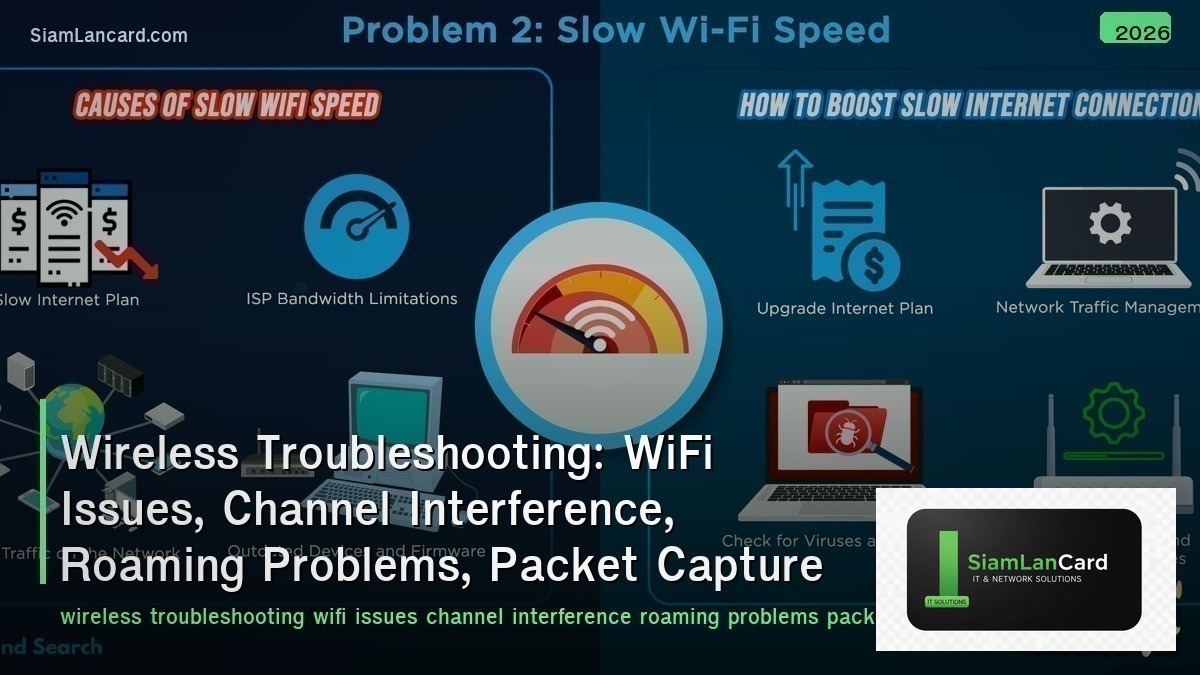
Wireless Troubleshooting แก้ปัญหา WiFi ที่พบบ่อยในองค์กร WiFi Issues ครอบคลุมปัญหาทั้ง connectivity และ performance, Channel Interference เกิดจาก overlapping channels และ non-WiFi sources, Roaming Problems ทำให้ clients หลุดเมื่อย้าย AP, Packet Capture จับ wireless frames เพื่อวิเคราะห์ และ Tools ช่วยให้ troubleshoot ได้อย่างมีระบบ
WiFi problems เป็น complaint อันดับ 1 ของ IT helpdesk: “WiFi ช้า”, “WiFi หลุด”, “เชื่อมต่อไม่ได้” แต่สาเหตุมีหลายร้อยอย่าง: RF interference, channel congestion, driver issues, authentication failures, DHCP exhaustion, roaming problems, hidden node, sticky clients ปัญหาคือ WiFi เป็น shared medium → ทุก device แชร์ bandwidth → performance ขึ้นกับทุก device ในบริเวณนั้น
Common WiFi Issues
| Issue |
Symptoms |
Common Cause |
| Slow WiFi |
Low throughput, high latency, buffering |
Channel congestion, too many clients, interference, low signal |
| Disconnections |
Random drops, reconnecting frequently |
Roaming issues, driver bugs, DHCP lease expired, AP overload |
| Can’t Connect |
Authentication failure, no IP address |
Wrong password, RADIUS error, DHCP pool exhausted, MAC filter |
| Intermittent |
Works sometimes, fails other times |
Interference (microwave, Bluetooth), hidden node, radar (DFS) |
| One Device Only |
All other devices work, one doesn’t |
Client driver issue, WiFi adapter, band/protocol mismatch |
| Slow in Specific Area |
Works fine elsewhere, slow in one spot |
Coverage hole, interference source, congested AP |
Channel Interference
| Type |
Source |
Fix |
| Co-Channel Interference (CCI) |
Multiple APs on same channel → share airtime (contention) |
Channel planning: 1/6/11 for 2.4GHz, non-overlapping for 5GHz |
| Adjacent Channel Interference (ACI) |
APs on overlapping channels (e.g., 1 and 3) → signal corruption |
Only use non-overlapping: 1/6/11 (2.4GHz), 40MHz channels (5GHz) |
| Non-WiFi Interference |
Microwave ovens, Bluetooth, cordless phones, baby monitors (2.4GHz) |
Move to 5GHz/6GHz, identify and relocate interference source |
| Radar (DFS) |
Weather radar on 5GHz DFS channels → AP must vacate channel |
Avoid DFS channels for critical apps, or accept occasional channel switch |
| Neighbor APs |
Dense apartments/offices → many APs on same channels |
Lower AP power, use 5GHz/6GHz, increase channel width carefully |
Roaming Problems
| Problem |
Description |
Solution |
| Sticky Client |
Client stays connected to far AP instead of roaming to closer AP |
Enable 802.11k/v (neighbor report + BSS transition), minimum RSSI on AP |
| Slow Roam |
Roam takes > 150ms → VoIP call drops, video freezes |
Enable 802.11r (Fast BSS Transition), OKC (Opportunistic Key Caching) |
| Authentication Delay |
Full 802.1X re-authentication on every roam → seconds delay |
PMK Caching, 802.11r, OKC → skip full re-auth on roam |
| IP Change |
Client gets new IP on different subnet when roaming |
Same VLAN/subnet across APs, or use L3 roaming (controller-based) |
| Band Steering Conflict |
Client bounces between 2.4GHz and 5GHz → performance inconsistency |
Configure band steering preference, set minimum RSSI for 5GHz |
Wireless Packet Capture
| Method |
How |
Use Case |
| Monitor Mode Capture |
Put WiFi adapter in monitor mode → capture all 802.11 frames on channel |
See management/control frames, retransmissions, signal levels |
| AP-Based Capture |
AP captures packets on radio → send to Wireshark via streaming/download |
Capture at AP location without physical presence |
| Controller Capture |
WLC captures client traffic at controller → mirror to analysis port |
See decrypted traffic, client-to-infrastructure communication |
| USB WiFi Adapter |
External adapter (monitor mode capable) + Wireshark on laptop |
Portable capture, specific location investigation |
Key 802.11 Frames to Watch
| Frame |
Type |
What to Look For |
| Beacon |
Management |
SSID, channel, supported rates, capabilities, beacon interval |
| Probe Request/Response |
Management |
Client scanning, AP responding — see what client is looking for |
| Authentication |
Management |
Auth method, success/failure — 802.1X issues visible here |
| Association/Reassociation |
Management |
Client connecting/roaming — capabilities negotiation |
| Deauthentication |
Management |
Reason codes: 1 (unspecified), 2 (auth expired), 3 (deauth leaving) — why disconnected |
| Data + Retransmissions |
Data |
High retransmission rate (> 10%) = RF problem (interference, low signal) |
| RTS/CTS |
Control |
Hidden node problem — RTS/CTS mechanism active |
Troubleshooting Tools
| Tool |
Function |
Platform |
| Wireshark |
Packet capture and analysis — deep 802.11 frame inspection |
Windows, Mac, Linux |
| Ekahau Survey |
Professional WiFi site survey — coverage, capacity, interference maps |
Windows (+ Sidekick hardware) |
| WiFi Explorer |
WiFi scanner — channel utilization, signal strength, interference |
Mac |
| inSSIDer |
WiFi scanner — channel overlap, signal strength, network details |
Windows |
| Acrylic WiFi |
WiFi analyzer — channel analysis, heatmaps, packet capture |
Windows |
| WLC Dashboard |
Controller-based monitoring: client count, signal, throughput, errors per AP |
Cisco WLC, Aruba Central, Meraki |
| iperf3 |
Throughput testing — measure actual wireless performance between client and server |
Cross-platform |
Troubleshooting Methodology
| Step |
Action |
| 1. Define Problem |
What exactly? Slow, disconnecting, can’t connect? One user or many? Where? When? |
| 2. Check Signal |
RSSI ≥ -67dBm (data), ≥ -65dBm (voice)? SNR ≥ 25dB? If not → coverage problem |
| 3. Check Channel |
Channel utilization < 50%? Interference sources? Overlapping channels? |
| 4. Check Client |
Specific device? Driver up to date? Supported bands/protocols? Other devices work? |
| 5. Check AP |
AP CPU/memory? Client count? Firmware version? Logs showing errors? |
| 6. Check Infrastructure |
DHCP pool? RADIUS server? VLAN trunking? Switch port errors? |
| 7. Packet Capture |
If still unsolved → capture 802.11 frames → analyze retransmissions, auth failures, roaming |
ทิ้งท้าย: WiFi Troubleshooting = Systematic, Not Guessing
Wireless Troubleshooting Common: slow (congestion/interference), disconnections (roaming/driver), can’t connect (auth/DHCP) Interference: CCI (same channel), ACI (overlapping), non-WiFi (microwave), radar (DFS) → use 5GHz/6GHz Roaming: sticky clients (802.11k/v), slow roam (802.11r), auth delay (PMK cache, OKC) Packet Capture: monitor mode + Wireshark, AP-based capture, key frames (beacon, auth, deauth, retransmissions) Tools: Wireshark (deep analysis), Ekahau (survey), WiFi Explorer/inSSIDer (scanner), iperf3 (throughput) Methodology: define → check signal → channel → client → AP → infrastructure → packet capture Key: WiFi problems have root causes — systematic troubleshooting (not rebooting AP) finds and fixes them
อ่านเพิ่มเติมเกี่ยวกับ Wireless Security WPA3 802.1X RADIUS และ Campus Network Design Three-Tier SD-Access Wireless ที่ siamlancard.com หรือจาก icafeforex.com และ siam2r.com