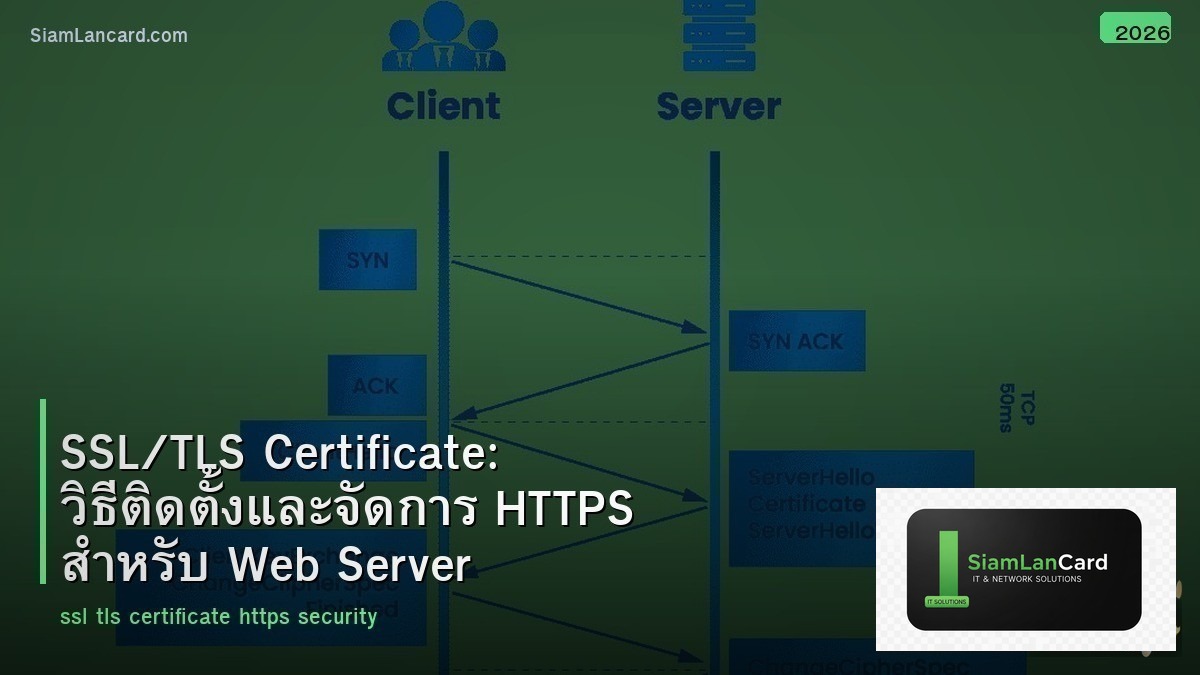
SSL/TLS Certificate: วิธีติดตั้งและจัดการ HTTPS สำหรับ Web Server
SSL/TLS Certificate เป็นสิ่งจำเป็นสำหรับทุก website ในปัจจุบัน browsers สมัยใหม่แสดง “Not Secure” สำหรับ website ที่ไม่มี HTTPS Google ใช้ HTTPS เป็น ranking factor สำหรับ SEO และที่สำคัญที่สุด SSL/TLS encrypt ข้อมูลระหว่าง browser กับ server ป้องกันการดักฟัง (man-in-the-middle attack) ปกป้อง passwords, credit card numbers และข้อมูลส่วนตัวของ users
การติดตั้ง SSL/TLS certificate ไม่ยากอย่างที่คิด โดยเฉพาะเมื่อมี Let’s Encrypt ที่ให้ certificate ฟรี และ tools อย่าง Certbot ที่ติดตั้งอัตโนมัติ บทความนี้จะอธิบายตั้งแต่พื้นฐานของ SSL/TLS จนถึงวิธีติดตั้งบน web server ยอดนิยม และการจัดการ certificate ในองค์กร
SSL vs TLS
ความแตกต่าง
SSL (Secure Sockets Layer) เป็น protocol เดิมที่ถูก deprecate แล้ว SSL 2.0 และ 3.0 มีช่องโหว่ร้ายแรง ไม่ควรใช้ TLS (Transport Layer Security) เป็น successor ของ SSL TLS 1.2 เป็น minimum ที่ยอมรับได้ในปัจจุบัน TLS 1.3 เป็น version ล่าสุดที่เร็วและปลอดภัยที่สุด แม้คนทั่วไปจะยังเรียกว่า “SSL certificate” แต่จริงๆ แล้วใช้ TLS protocol
ประเภทของ SSL/TLS Certificates
| ประเภท | Validation | ราคา | ระยะเวลา | เหมาะกับ |
|---|---|---|---|---|
| DV (Domain Validated) | ตรวจสอบว่าเป็นเจ้าของ domain | ฟรี – 1,000 บาท/ปี | นาที – ชั่วโมง | Blog, website ทั่วไป |
| OV (Organization Validated) | ตรวจสอบ domain + องค์กร | 3,000 – 15,000 บาท/ปี | 1-3 วัน | Business website, e-commerce |
| EV (Extended Validation) | ตรวจสอบละเอียด + แสดงชื่อองค์กร | 10,000 – 50,000 บาท/ปี | 3-7 วัน | ธนาคาร, financial services |
| Wildcard | ครอบคลุม *.domain.com | 5,000 – 30,000 บาท/ปี | ขึ้นกับ type (DV/OV) | องค์กรที่มีหลาย subdomains |
| Multi-Domain (SAN) | ครอบคลุมหลาย domains | 8,000 – 40,000 บาท/ปี | ขึ้นกับ type | องค์กรที่มีหลาย domains |
Let’s Encrypt: Certificate ฟรี
ทำไมถึงฟรี
Let’s Encrypt เป็น Certificate Authority (CA) ที่ให้ DV certificate ฟรี สนับสนุนโดย ISRG (Internet Security Research Group) ได้รับทุนจาก Mozilla, Google, Facebook, Cisco และอีกหลายบริษัท เป้าหมายคือทำให้ HTTPS เป็นมาตรฐานของทุก website
วิธีติดตั้งด้วย Certbot
Certbot เป็น tool อัตโนมัติสำหรับ Let’s Encrypt ติดตั้งบน Linux server ด้วย snap หรือ apt รัน certbot สำหรับ web server ที่ใช้ (Apache หรือ Nginx) certbot จะขอ certificate, configure web server, ตั้ง auto-renewal ให้ทั้งหมดอัตโนมัติ certificate มีอายุ 90 วัน แต่ certbot auto-renew ให้ไม่ต้องทำอะไร
ติดตั้ง SSL บน Nginx
ขั้นตอน
ติดตั้ง Certbot สำหรับ Nginx รัน certbot –nginx เลือก domain ที่ต้องการ certbot จะสร้าง certificate และ configure Nginx ให้อัตโนมัติ redirect HTTP (port 80) ไป HTTPS (port 443) ทดสอบด้วย curl หรือ browser ตรวจสอบว่า HTTPS ทำงาน ตรวจสอบ auto-renewal ด้วย certbot renew –dry-run
ติดตั้ง SSL บน Apache
ขั้นตอน
ติดตั้ง Certbot สำหรับ Apache enable mod_ssl บน Apache รัน certbot –apache เลือก domain certbot configure VirtualHost ให้อัตโนมัติ เหมือน Nginx certbot จัดการ certificate, configuration และ auto-renewal ให้ทั้งหมด
SSL สำหรับ Internal Services
Internal CA (Private CA)
สำหรับ internal services ขององค์กร (intranet, internal APIs, management interfaces) ที่ไม่ได้เปิดให้ public เข้าถึง ใช้ Let’s Encrypt ไม่ได้ (เพราะต้อง validate domain จาก internet) ทางเลือก: สร้าง Internal CA ด้วย OpenSSL หรือ Microsoft AD Certificate Services ออก certificate ให้ internal servers ติดตั้ง CA certificate บน devices ขององค์กร (ผ่าน GPO หรือ MDM)
Self-Signed Certificate
Self-signed certificate สร้างได้ง่ายด้วย OpenSSL แต่ browser จะแสดง warning เพราะไม่ได้ signed โดย trusted CA เหมาะสำหรับ development/testing environment เท่านั้น ไม่ควรใช้ใน production
Certificate Management Best Practices
Certificate Inventory
เก็บ inventory ของ certificates ทั้งหมดในองค์กร domain, issuer, expiry date, server ที่ติดตั้ง, ผู้รับผิดชอบ ใช้ spreadsheet หรือ certificate management tool ตรวจสอบ expiry dates ทุกสัปดาห์ ตั้ง alert 30 วันก่อน expire
Auto-Renewal
ตั้ง auto-renewal สำหรับ Let’s Encrypt certificates certbot มี cron job auto-renew อยู่แล้ว สำหรับ commercial certificates ตั้ง reminder 60 วันก่อน expire เพราะ OV/EV certificates ต้อง validate ใหม่ ใช้เวลาหลายวัน
TLS Configuration
หลังติดตั้ง certificate แล้ว ต้อง configure TLS ให้ปลอดภัย ปิด TLS 1.0 และ 1.1 (มีช่องโหว่) เปิดเฉพาะ TLS 1.2 และ 1.3 ใช้ cipher suites ที่แข็งแกร่ง (ECDHE, AES-GCM) เปิด HSTS (HTTP Strict Transport Security) บังคับให้ browser ใช้ HTTPS เสมอ ทดสอบ configuration ด้วย SSL Labs (ssllabs.com/ssltest) เป้าหมาย: ได้ A+ rating
ตาราง SSL Labs Grade
| Grade | ความหมาย | สิ่งที่ต้องทำ |
|---|---|---|
| A+ | ดีเยี่ยม | HSTS enabled, TLS 1.2+, strong ciphers |
| A | ดี | TLS 1.2+, good ciphers, ไม่มี HSTS |
| B | พอใช้ | อาจยังเปิด TLS 1.0/1.1 หรือ weak ciphers |
| C-F | ไม่ปลอดภัย | มี vulnerabilities ร้ายแรง ต้องแก้ทันที |
ทิ้งท้าย: HTTPS ไม่ใช่ทางเลือก แต่เป็นมาตรฐาน
SSL/TLS เป็นพื้นฐานที่ทุก website ต้องมี Let’s Encrypt ทำให้ไม่มีข้ออ้างเรื่องค่าใช้จ่ายอีกต่อไป ติดตั้ง certificate, configure TLS ให้แข็งแกร่ง, ตั้ง auto-renewal และทดสอบด้วย SSL Labs แค่นี้ website ก็ปลอดภัยสำหรับ users
อ่านเพิ่มเติมเกี่ยวกับ DNS Security และ Firewall Best Practices ที่ siamlancard.com หรือจาก icafeforex.com และ siam2r.com