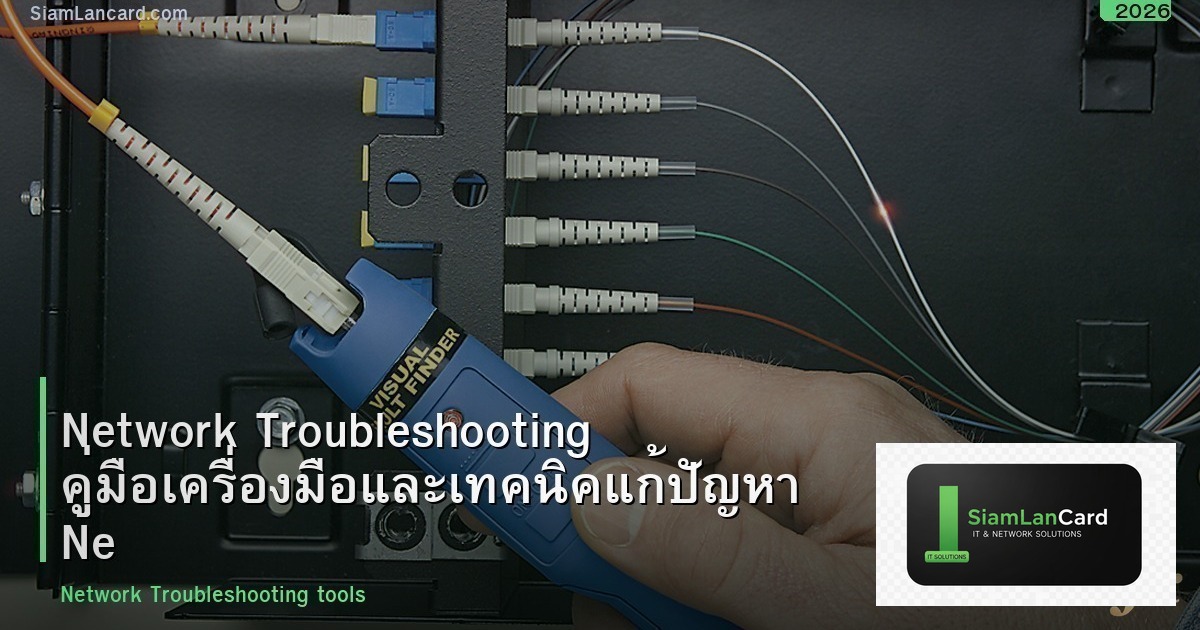
Network Troubleshooting คืออะไร? ทักษะที่ IT ทุกคนต้องมี
Network Troubleshooting คือ กระบวนการวิเคราะห์และแก้ไขปัญหาที่เกิดขึ้นในระบบ Network อย่างเป็นระบบ ปัญหา Network เป็นเรื่องที่ IT ทุกองค์กรต้องเจอ ไม่ว่าจะเป็น Internet ช้า เข้าเว็บไม่ได้ Printer ไม่ออก VPN ไม่เชื่อมต่อ หรือ Server เข้าไม่ได้ การมีทักษะ Troubleshooting ที่ดีจะช่วยลดเวลาแก้ปัญหาจากชั่วโมงเหลือนาที ลด Downtime และเพิ่มความพึงพอใจของผู้ใช้
OSI Model — Framework สำหรับ Troubleshooting
OSI Model 7 Layer เป็น Framework ที่ดีที่สุดสำหรับ Troubleshoot ปัญหา Network อย่างเป็นระบบ เริ่มจาก Layer 1 (Physical) ขึ้นไป Layer 7 (Application)
| Layer | ชื่อ | ปัญหาที่พบบ่อย | เครื่องมือตรวจสอบ |
|---|---|---|---|
| 1 | Physical | สายหลุด สายขาด Port พัง ไฟดับ | ดูไฟ Link, Cable Tester, ดูสาย |
| 2 | Data Link | VLAN ผิด MAC Table เต็ม STP Loop | show mac-address-table, show vlan |
| 3 | Network | IP ซ้ำ Subnet ผิด Route ไม่มี | ping, traceroute, show ip route |
| 4 | Transport | Port ถูก Block Firewall Rule ผิด | telnet, netstat, nmap |
| 5-6 | Session/Presentation | SSL/TLS Error, Certificate หมดอายุ | openssl, curl -v |
| 7 | Application | DNS ผิด App Config ผิด Service ล่ม | nslookup, curl, app logs |
เครื่องมือ Network Troubleshooting ที่ต้องรู้
1. ping — ทดสอบการเชื่อมต่อพื้นฐาน
ping ส่ง ICMP Echo Request ไปยังเป้าหมาย แล้วรอ Reply กลับ ใช้ตรวจสอบว่าเครื่องปลายทางยังทำงานอยู่หรือไม่ และ Latency เป็นเท่าไหร่
# ping เบื้องต้น
ping 8.8.8.8              # ทดสอบ Internet (Google DNS)
ping 10.0.20.1            # ทดสอบ Gateway
ping server01.company.local  # ทดสอบ Server ภายใน

# ping ต่อเนื่อง (Windows)
ping -t 8.8.8.8           # ping ไม่หยุดจนกว่าจะกด Ctrl+C

# ผลลัพธ์ที่ต้องดู
# Reply from 8.8.8.8: bytes=32 time=15ms TTL=118  ← OK
# Request timed out.                                ← ปัญหา!
# Destination host unreachable.                     ← Route ไม่มี
2. traceroute / tracert — ดูเส้นทาง Network
traceroute แสดง Hop ทุก Hop ที่ Packet วิ่งผ่านไปยังเป้าหมาย ช่วยระบุว่าปัญหาเกิดที่ Hop ไหน
# Windows
tracert 8.8.8.8

# Linux/Mac
traceroute 8.8.8.8

# ผลลัพธ์ตัวอย่าง
# 1   1 ms    10.0.20.1        ← Gateway
# 2   5 ms    172.16.0.1       ← ISP Router
# 3   * * *   Request timed out ← ปัญหาที่ Hop นี้!
# 4   15 ms   8.8.8.8          ← ปลายทาง
3. nslookup / dig — ตรวจสอบ DNS
ใช้ตรวจสอบว่า DNS Resolve ชื่อ Domain ได้ถูกต้องหรือไม่
# ตรวจสอบ DNS
nslookup google.com
nslookup server01.company.local
nslookup google.com 8.8.8.8    # ระบุ DNS Server

# Linux ใช้ dig
dig google.com
dig @8.8.8.8 google.com
4. ipconfig / ifconfig — ดูค่า Network Interface
# Windows
ipconfig /all              # ดู IP, Subnet, Gateway, DNS, DHCP
ipconfig /release          # ปล่อย IP จาก DHCP
ipconfig /renew            # ขอ IP ใหม่จาก DHCP
ipconfig /flushdns         # ล้าง DNS Cache

# Linux
ip addr show               # ดู IP Address
ip route show              # ดู Routing Table
5. netstat / ss — ดู Connection และ Port
# Windows
netstat -an                # ดู Connection ทั้งหมด
netstat -an | findstr :80  # หา Connection Port 80

# Linux
ss -tulnp                  # ดู Listening Port + Process
ss -an | grep :443         # หา Connection Port 443
6. Wireshark — วิเคราะห์ Packet เชิงลึก
Wireshark เป็นเครื่องมือ Packet Capture ที่ทรงพลังที่สุด ใช้ดักจับและวิเคราะห์ Packet ทุกตัวที่วิ่งผ่าน Network Interface
- Capture Filter: กรอง Packet ตอนดักจับ เช่น
host 10.0.20.10หรือport 80 - Display Filter: กรอง Packet ตอนแสดงผล เช่น
http,dns,tcp.flags.syn==1 - Follow TCP Stream: ดู Conversation ทั้งหมดของ TCP Connection
- Expert Info: Wireshark วิเคราะห์ปัญหาให้อัตโนมัติ เช่น Retransmission, Reset, Timeout
7. iperf3 — ทดสอบ Bandwidth
# เครื่อง Server
iperf3 -s

# เครื่อง Client
iperf3 -c 10.0.20.10      # ทดสอบ TCP Bandwidth
iperf3 -c 10.0.20.10 -u   # ทดสอบ UDP
iperf3 -c 10.0.20.10 -P 4 # ใช้ 4 Thread
วิธี Troubleshoot ปัญหาที่พบบ่อย
ปัญหา: เข้า Internet ไม่ได้
- ตรวจสอบสาย LAN / WiFi Connection
ping 127.0.0.1→ ทดสอบ TCP/IP Stackping [Gateway IP]→ ทดสอบ LAN Connectionping 8.8.8.8→ ทดสอบ Internet (IP)ping google.com→ ทดสอบ DNS Resolution- ถ้า ping IP ได้แต่ชื่อไม่ได้ → ปัญหา DNS → เปลี่ยน DNS เป็น 8.8.8.8
- ถ้า ping Gateway ไม่ได้ → ปัญหา LAN → ตรวจสอบสาย, VLAN, DHCP
ปัญหา: Network ช้า
- ทดสอบ Bandwidth ด้วย iperf3 ระหว่าง PC กับ Switch/Server
- ตรวจสอบ Duplex Mismatch บน Switch Port (Auto/Full/Half)
- ตรวจสอบ CRC Errors, Packet Loss บน Switch Port
- ตรวจสอบ CPU/Memory ของ Switch, Router, Firewall
- ตรวจสอบ Bandwidth Utilization บน Uplink
- ตรวจสอบ QoS/Rate Limiting ที่อาจจำกัดความเร็ว
ปัญหา: DHCP ไม่แจก IP
ipconfig /releaseแล้วipconfig /renew- ตรวจสอบว่า DHCP Server ทำงานอยู่
- ตรวจสอบ DHCP Pool ว่า IP ยังมีเหลือ
- ตรวจสอบ DHCP Relay Agent (ถ้า Client อยู่คนละ VLAN กับ DHCP Server)
- ตรวจสอบว่า Port ที่เสียบเป็น Access Port VLAN ที่ถูกต้อง
Best Practices สำหรับ Network Troubleshooting
- เริ่มจาก Layer 1: ตรวจสอบ Physical ก่อนเสมอ สายหลุด ไฟ Link ดับ เป็นสาเหตุ 50% ของปัญหา
- เปลี่ยนทีละอย่าง: อย่าเปลี่ยนหลายอย่างพร้อมกัน เพราะจะไม่รู้ว่าอะไรแก้ปัญหาได้
- Document ทุกครั้ง: บันทึกปัญหา สาเหตุ วิธีแก้ไข เพื่อใช้อ้างอิงในอนาคต
- มี Baseline: วัดค่าปกติ (Bandwidth, Latency, Error Rate) เก็บไว้ เพื่อเปรียบเทียบเมื่อมีปัญหา
- มี Network Diagram: แผนผัง Network ที่อัปเดตล่าสุด ช่วยลดเวลา Troubleshoot อย่างมาก
สรุป Network Troubleshooting — ทักษะที่พัฒนาได้ด้วยการฝึกฝน
Network Troubleshooting เป็นทักษะที่สำคัญที่สุดสำหรับ IT ทุกคน ยิ่งมีประสบการณ์มาก ยิ่งแก้ปัญหาได้เร็ว สิ่งสำคัญคือต้องมีระบบ ใช้ OSI Model เป็น Framework และใช้เครื่องมือที่ถูกต้อง หากต้องการข้อมูลเพิ่มเติม ติดตามได้ที่ SiamLanCard.com