Home » Network Troubleshooting Tools: 10 เครื่องมือที่ Network Engineer ต้องมี
Network Troubleshooting Tools: 10 เครื่องมือที่ Network Engineer ต้องมี
Network Troubleshooting Tools: 10 เครื่องมือที่ Network Engineer ต้องมี
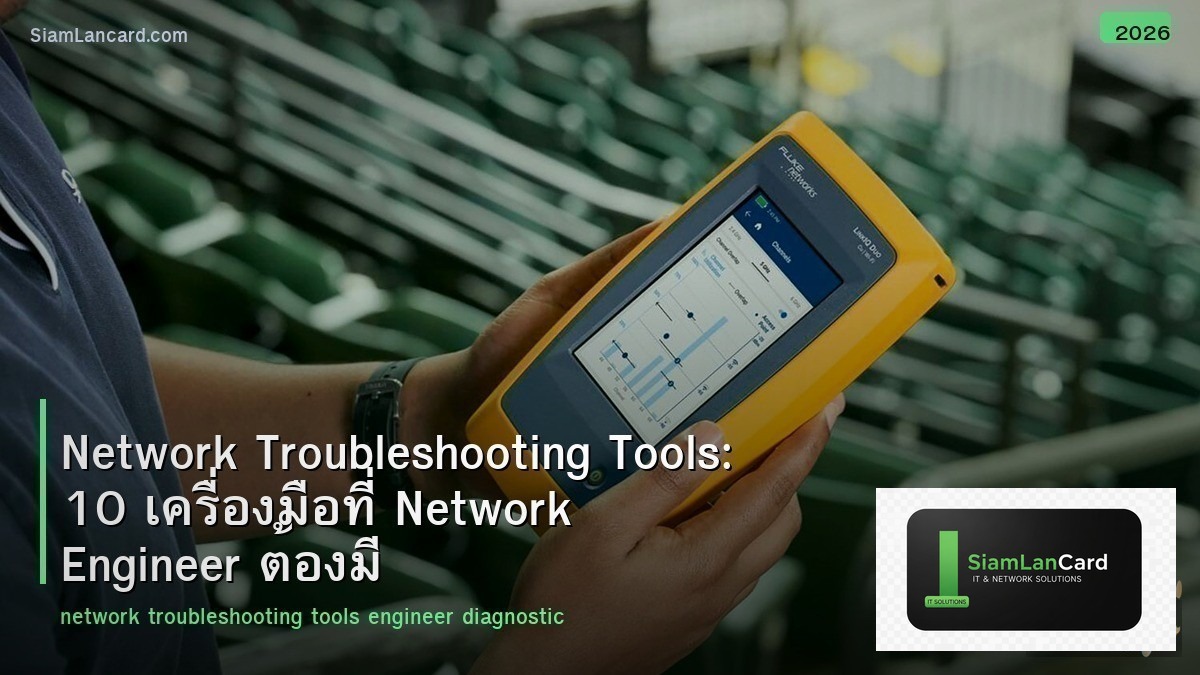
Network Troubleshooting เป็นทักษะหลักของ network engineer เมื่อเกิดปัญหา network ต้องวินิจฉัยและแก้ไขให้เร็วที่สุด การมีเครื่องมือที่เหมาะสมช่วยลดเวลาในการหาสาเหตุจากหลายชั่วโมงเหลือไม่กี่นาที บทความนี้รวบรวม 10 เครื่องมือสำคัญที่ network engineer ทุกคนควรมีและรู้จักใช้
เครื่องมือเหล่านี้ครอบคลุมตั้งแต่ basic connectivity testing ไปจนถึง deep packet analysis ทั้ง command-line tools ที่มีในทุก OS และ software เฉพาะทาง แต่ละเครื่องมือเหมาะกับสถานการณ์ต่างกัน การรู้ว่าเมื่อไหร่ควรใช้เครื่องมือไหนคือสิ่งที่แยก junior กับ senior engineer
1. Ping (ICMP Echo)
| คุณสมบัติ |
รายละเอียด |
| ใช้ทำอะไร |
ทดสอบ connectivity พื้นฐาน, วัด latency, ตรวจ packet loss |
| Protocol |
ICMP Echo Request/Reply |
| Platform |
ทุก OS (Windows, Linux, macOS, network devices) |
| เมื่อไหร่ใช้ |
เริ่มต้นทุกครั้งที่ troubleshoot: “ping ได้หรือเปล่า?” |
2. Traceroute / Tracert
| คุณสมบัติ |
รายละเอียด |
| ใช้ทำอะไร |
แสดง path ที่ packet เดินทาง, หาจุดที่ traffic หยุด/ช้า |
| วิธีทำงาน |
ส่ง packets ที่ TTL เพิ่มขึ้นทีละ 1 แต่ละ hop ตอบกลับ |
| Platform |
traceroute (Linux), tracert (Windows), traceroute (Cisco) |
| เมื่อไหร่ใช้ |
Ping ไม่ผ่าน หรือ latency สูง → หา hop ที่มีปัญหา |
3. Nslookup / Dig
| คุณสมบัติ |
รายละเอียด |
| ใช้ทำอะไร |
ตรวจสอบ DNS resolution: domain → IP, ดู DNS records |
| Commands |
nslookup (Windows/Linux), dig (Linux, ละเอียดกว่า) |
| เมื่อไหร่ใช้ |
เว็บเปิดไม่ได้ แต่ ping IP ได้ = DNS problem |
4. Wireshark
| คุณสมบัติ |
รายละเอียด |
| ใช้ทำอะไร |
Capture + analyze network packets แบบ deep (Layer 2-7) |
| จุดเด่น |
GUI สวย, filter ทรงพลัง, decode ทุก protocol, free |
| Platform |
Windows, Linux, macOS |
| เมื่อไหร่ใช้ |
ปัญหาซับซ้อน: application ช้า, protocol errors, security investigation |
5. Nmap
| คุณสมบัติ |
รายละเอียด |
| ใช้ทำอะไร |
Port scanning, host discovery, OS detection, service detection |
| จุดเด่น |
ทรงพลังมาก, scripting engine (NSE), free |
| Platform |
Windows, Linux, macOS |
| เมื่อไหร่ใช้ |
ตรวจว่า port เปิดหรือไม่, หา devices ใน subnet, security audit |
6. MTR (My Traceroute)
| คุณสมบัติ |
รายละเอียด |
| ใช้ทำอะไร |
รวม ping + traceroute ในตัวเดียว แสดง real-time statistics ทุก hop |
| จุดเด่น |
เห็น packet loss + latency ทุก hop ตลอดเวลา |
| Platform |
Linux (mtr), Windows (WinMTR) |
| เมื่อไหร่ใช้ |
Intermittent connectivity issues, หา hop ที่ drop packets |
7. iPerf3
| คุณสมบัติ |
รายละเอียด |
| ใช้ทำอะไร |
วัด bandwidth จริงระหว่าง 2 จุด (throughput test) |
| วิธีทำงาน |
ตั้ง server ฝั่งหนึ่ง client อีกฝั่ง → ส่ง data วัด speed |
| Platform |
Windows, Linux, macOS |
| เมื่อไหร่ใช้ |
ตรวจว่า link ได้ bandwidth ตามที่ควร, WAN performance test |
8. SNMP Tools (snmpwalk, snmpget)
| คุณสมบัติ |
รายละเอียด |
| ใช้ทำอะไร |
ดึงข้อมูลจากอุปกรณ์ network: interface status, CPU, memory, errors |
| Commands |
snmpwalk (ดึงทั้ง tree), snmpget (ดึง specific OID) |
| เมื่อไหร่ใช้ |
ตรวจสอบ device health, interface errors, arp table |
9. Netcat (nc)
| คุณสมบัติ |
รายละเอียด |
| ใช้ทำอะไร |
TCP/UDP connectivity test, port check, simple file transfer |
| จุดเด่น |
“Swiss army knife” ของ networking, lightweight |
| Platform |
Linux, macOS (Windows: ncat จาก Nmap) |
| เมื่อไหร่ใช้ |
ตรวจว่า TCP port เปิด, test firewall rules, debug connections |
10. tcpdump
| คุณสมบัติ |
รายละเอียด |
| ใช้ทำอะไร |
Command-line packet capture (เหมือน Wireshark แต่ CLI) |
| จุดเด่น |
ใช้ได้บน server/router ที่ไม่มี GUI, lightweight |
| Platform |
Linux, macOS, network devices (Cisco, Palo Alto) |
| เมื่อไหร่ใช้ |
Capture packets บน server/firewall ที่ไม่มี GUI |
เครื่องมือเลือกใช้ตามสถานการณ์
| ปัญหา |
เครื่องมือแรก |
เครื่องมือถัดไป |
| เข้าเว็บไม่ได้ |
ping → nslookup |
traceroute → Wireshark |
| Network ช้า |
ping (latency) → MTR |
iPerf3 → Wireshark |
| Port ไม่เปิด |
Nmap → netcat |
tcpdump (firewall side) |
| Intermittent drops |
MTR (long run) |
Wireshark → SNMP (interface errors) |
| Application error |
Wireshark |
tcpdump → curl -v |
| Device health |
SNMP tools |
show commands (SSH) |
ทิ้งท้าย: เครื่องมือดี + ทักษะดี = แก้ปัญหาเร็ว
10 เครื่องมือนี้ ครอบคลุม 90% ของ troubleshooting scenarios เริ่มจาก ping/traceroute (basic) → Wireshark/tcpdump (advanced) ฝึกใช้ทุกเครื่องมือจนคล่อง ก่อนเกิดปัญหาจริง รู้ว่าเมื่อไหร่ใช้เครื่องมือไหน คือทักษะที่สำคัญที่สุด
อ่านเพิ่มเติมเกี่ยวกับ Wireshark Packet Analysis และ Network Troubleshooting Methodology ที่ siamlancard.com หรือจาก icafeforex.com และ siam2r.com